
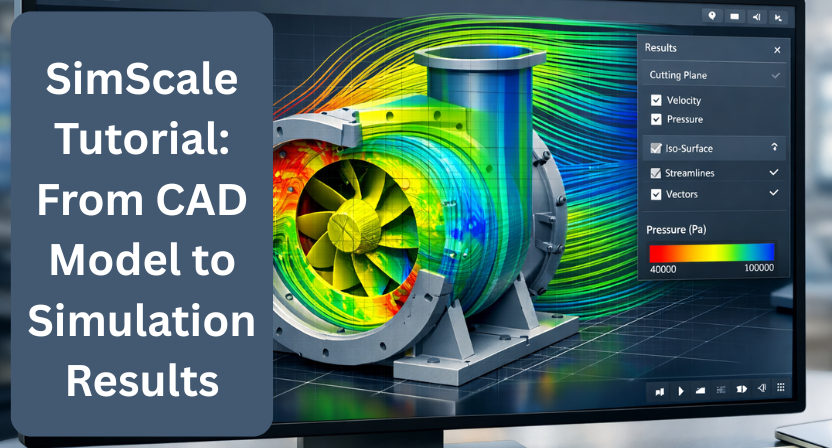
Engineering simulation used to be complex, expensive, and limited to high-end systems. Today, tools like SimScale have completely changed that experience by making simulation accessible directly from your browser. Whether you’re a product designer, mechanical engineer, or part of a growing startup, SimScale allows you to test, validate, and optimize your designs faster than ever.
In this tutorial, let’s walk through the complete journey from uploading your CAD model to getting meaningful simulation results.
What is SimScale and Why It Matters
SimScale is a cloud-based simulation platform that eliminates the need for powerful local hardware. Everything runs online, which means you can access your projects from anywhere, collaborate with your team, and scale simulations without worrying about system limitations.
More importantly, it brings together multiple simulation types like:
- CFD (Computational Fluid Dynamics)
- Structural analysis
- Thermal analysis
All in one place.
Step 1: Preparing Your CAD Model
Before jumping into SimScale, the first step is making sure your CAD model is ready.
A clean model saves a lot of time later. Here’s what you should check:
- Remove unnecessary small features (tiny fillets, holes, etc.)
- Ensure there are no gaps or overlapping surfaces
- Simplify the geometry wherever possible
You can use tools like SolidWorks, Fusion 360, or any standard CAD software to prepare your model.
Once ready, export the file in a compatible format like STEP, IGES, or STL.
Step 2: Importing the Model into SimScale
After logging into SimScale, create a new project and upload your CAD file.
The platform will automatically process your geometry. Once imported:
- Inspect the model visually
- Check for any geometry errors
- Use the built-in tools to fix minor issues if needed
This step ensures your simulation won’t fail later due to geometry problems.
Step 3: Setting Up the Simulation
Now comes the core part defining what you want to simulate.
SimScale offers multiple simulation types. Choose the one that fits your goal:
- Fluid flow → CFD simulation
- Stress or deformation → Structural simulation
- Heat transfer → Thermal simulation
After selecting the simulation type, you’ll define:
- Boundary conditions (inlet, outlet, loads, constraints)
- Material properties
- Initial conditions
Take your time here the accuracy of your results depends heavily on how well you define these parameters.
Step 4: Meshing the Model
Meshing divides your CAD model into smaller elements so the software can perform calculations.
SimScale provides automated meshing tools that are beginner-friendly, but you can also customize:
- Mesh size
- Refinement areas
- Surface details
A finer mesh gives more accurate results, but it also increases computation time. The key is to balance accuracy and efficiency.
Step 5: Running the Simulation
Once everything is set, you’re ready to run the simulation.
Since SimScale is cloud-based:
- You don’t need a high-performance computer
- Simulations run on powerful remote servers
- You can continue working while the simulation runs
Depending on the complexity, results can take anywhere from a few minutes to several hours.
Step 6: Analyzing the Results
This is where your effort pays off.
SimScale provides powerful post-processing tools to visualize:
- Pressure distribution
- Velocity fields
- Stress and deformation
- Temperature variations
You can:
- Rotate and inspect the model in 3D
- Create sectional views
- Generate reports and snapshots
The goal here is to interpret the results and identify improvements in your design.
Common Mistakes to Avoid
Even though SimScale is user-friendly, a few common mistakes can affect your results:
- Using an unclean CAD model
- Incorrect boundary conditions
- Overly coarse or overly fine mesh
- Ignoring validation of results
Always double-check your setup before running simulations.
Conclusion
SimScale has made engineering simulation more accessible than ever. From uploading a CAD model to analyzing results, the entire workflow is streamlined and efficient. Whether you’re validating a concept or optimizing a final design, the platform helps reduce development time and cost significantly.
At Qaxles Technologies, we work closely with global clients to deliver high-quality engineering simulation and design solutions. If you’re looking to implement SimScale in your workflow or need expert support for your simulation projects, our team can help you achieve accurate results faster while optimizing both time and cost.