
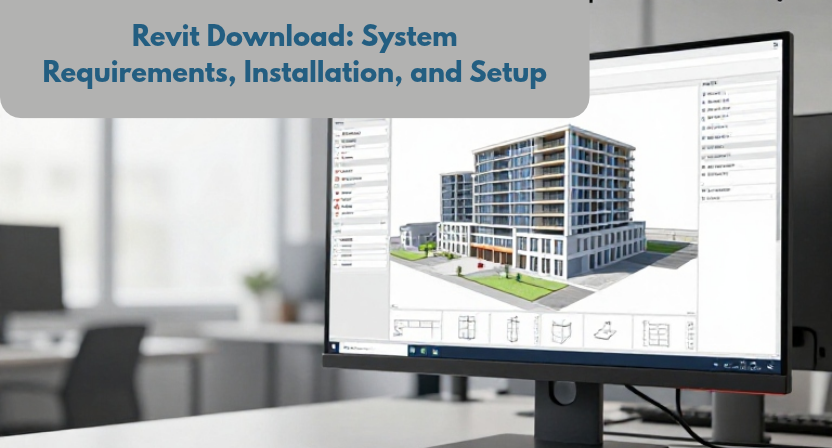
Are you planning to start a BIM project and looking for a reliable way to download Revit? Before installing the software, it is worth checking whether your computer can handle it and which version suits your work.
Autodesk Revit is widely used by architects, structural engineers, and MEP professionals to create intelligent 3D building models, generate drawings, and coordinate project information. However, downloading the software is only the first step. Choosing the correct version, preparing your computer, and completing the initial setup can make a real difference to your experience.
In this guide, we will explain how to complete a Revit download, check the system requirements, install the software, and prepare it for your first project.
What Is Autodesk Revit?
Autodesk Revit is Building Information Modeling (BIM) software used to design, document, and coordinate building projects. Instead of managing every drawing separately, users work with a connected building model.
For example, when you change a wall’s position in a Revit model, the associated floor plans, sections, and elevations can update accordingly. This helps reduce inconsistencies between drawings and makes design changes easier to manage.
Revit supports several areas of building design, including:
- Architecture: Walls, doors, windows, floors, roofs, and building layouts.
- Structural engineering: Structural framing, columns, foundations, and reinforcement workflows.
- MEP design: Mechanical, electrical, and plumbing systems.
- Construction documentation: Drawings, schedules, quantities, and project information.
- BIM coordination: Sharing model information and coordinating work across project teams.
If you work in architecture, engineering, or construction, Revit can become an important part of your design and documentation workflow.
Revit Download: Check the System Requirements First
Before you begin downloading Revit, check your computer’s specifications. A system that meets the minimum requirements may run the software, but larger projects can require considerably more memory and processing power.
The following specifications are based on Autodesk’s published requirements for Revit 2026. Always check the requirements for your chosen release before installing it.
Minimum System Requirements
| Component | Revit 2026 requirement |
|---|---|
| Operating system | 64-bit Windows 10 version 1809 or later, or Windows 11 |
| Processor | Intel or AMD processor with a base clock speed of 2 GHz or higher |
| RAM | 16 GB |
| Graphics | DirectX 11-capable graphics with Shader Model 5 |
| Graphics memory | At least 4 GB of video memory recommended |
| Installation space | Approximately 30 GB |
| Temporary storage | Around 100 GB of free space recommended |
| Display | Minimum 1280 × 1024 resolution |
| Internet connection | Required for licensing and downloading prerequisites |
These are entry-level specifications, not a guarantee of smooth performance for every project. Actual performance depends on model size, linked files, views, add-ins, and other applications running on your computer.
For large or complex models, Autodesk recommends 32 GB RAM or more for a balanced configuration, while demanding workflows may benefit from 64 GB RAM. You can review the complete requirements on the official Autodesk Revit system requirements page.
How Much RAM Do You Really Need?
This is an important question to consider before purchasing or upgrading a workstation.
- 16 GB RAM: A reasonable starting point for learning Revit and working on relatively small models.
- 32 GB RAM: A practical choice for regular professional work and moderately sized projects.
- 64 GB RAM or more: Worth considering for complex models, large linked files, and demanding multidisciplinary projects.
More RAM does not automatically make every operation faster. Processor performance, graphics capability, storage speed, and model quality also affect how Revit behaves.
Practical tip: If you are upgrading a computer specifically for Revit, check your current memory usage while opening a representative project. If Windows is frequently relying on the page file because physical memory is nearly full, additional RAM may improve responsiveness more than a graphics card upgrade alone. Test with a typical workload before spending money on new hardware.
How to Download Revit From the Official Website
The safest way to obtain Revit is through Autodesk. Avoid unofficial installers that may contain modified files, unwanted software, or security risks.
Follow these steps to begin your Revit download.
Step 1: Visit Autodesk’s Website
Open the official Autodesk Revit website.
Review the available product information and choose the appropriate option for your needs. Depending on your eligibility and requirements, Autodesk may offer subscription options, trial access, or educational access.
Step 2: Sign In to Your Autodesk Account
Sign in with your Autodesk account or create one if you do not already have an account.
You may need to provide account information and complete any eligibility checks required for your chosen access option.
Step 3: Select the Revit Version
Choose the version compatible with your project requirements and computer.
Before making your selection, consider:
- Whether your organisation uses a particular Revit release.
- Whether you need to exchange models with clients or consultants.
- Whether your existing add-ins support that version.
- Whether your computer meets the relevant system requirements.
This step matters because Revit project files are not always backward-compatible. A model saved in a newer release generally cannot be opened directly in an older release.
Step 4: Choose a Download or Installation Method
Follow the download or installation instructions displayed in your Autodesk account. The available methods can vary by product, release, account type, and operating system.
Allow the download to finish before launching the installer. If you are using a slow internet connection, a stable connection and sufficient free storage can help prevent interruptions.
How to Install Revit on Your Computer
Once the installer is available, you can proceed with installation.
Step 1: Prepare Your Computer
Before running the installer:
- Save your work and close unnecessary applications.
- Confirm that enough storage space is available.
- Check that Windows is up to date.
- Make sure you have permission to install applications.
- Keep your Autodesk account credentials available.
If you are installing Revit on a work computer, check with your IT administrator before changing system settings.
Step 2: Run the Installer
Open the downloaded installer and follow the on-screen instructions.
Review the installation location and the components selected during setup. Leave the default options unchanged unless you have a specific reason to customise them.
Step 3: Allow the Installation to Finish
The installer may need to download or configure additional components. The time required depends on your internet speed, computer performance, and the components being installed.
Do not shut down your computer or interrupt the installation while it is running.
Step 4: Restart if Required
If the installer requests a restart, save any open work and restart your computer.
After restarting, open Revit from the Start menu or the desktop shortcut, if one was created.
Step 5: Sign In and Activate Revit
Sign in using the Autodesk account associated with your access to the software. Follow the on-screen prompts to complete licensing or activation.
If you are using a trial or educational entitlement, check its validity and usage conditions in your Autodesk account.
For additional guidance, consult the official Revit installation documentation.
Initial Revit Setup: What Should You Do First?
Successfully installing Revit does not mean you are ready to begin every project. A few basic setup decisions can help you avoid problems later.
1. Choose the Correct Project Template
When creating a project, select a template that matches your discipline and workflow.
An architectural template, for example, may include settings suited to building layouts, while structural and MEP workflows require different tools and configurations.
Using an appropriate template helps establish the right units, views, and project settings from the beginning.
2. Check Project Units
Before modelling, confirm the project’s measurement units.
If you are working on a project in India, you may need metric units such as millimetres and metres. However, always follow the units specified by your client or project documentation.
Setting units correctly at the start can help prevent confusion when entering dimensions, reviewing drawings, or coordinating with other disciplines.
3. Configure Your Views
Review the default floor plans, elevations, and 3D views. Adjust view scales, visibility settings, and detail levels to suit the type of drawings you need.
You do not need to customise everything immediately. Begin with the views required for your first task and develop a consistent setup as your project grows.
4. Organise Your Project Files
Create a clear folder structure for project models, linked files, exported drawings, and reference documents.
For example, you could use separate folders for the central project model, consultant references, issued drawings, and exports.
For team projects, follow the organisation’s file-naming and model-sharing procedures rather than creating your own system independently.
5. Check Add-Ins and Linked Files
Some projects depend on third-party add-ins, shared libraries, or linked CAD and BIM files.
Confirm that any required add-ins are compatible with your Revit version. If you are continuing an existing project, check whether the linked files and supporting resources are available before assuming the model is ready to use.
An Often-Overlooked Step After Revit Download: Test a Small Project
Here is a practical step that new users and even experienced teams can overlook: test your setup with a small representative model before starting the main project.
Opening Revit successfully only confirms that the application launches. It does not prove that your workstation, project template, add-ins, and file workflow are all ready for production work.
Try this simple test:
- Create a small test project using the intended template.
- Model a basic room with walls, a floor, a door, and a window.
- Generate a floor plan, an elevation, and a 3D view.
- Change one wall dimension and confirm that the related views reflect the change.
- Save, close, and reopen the project.
- If you will work with a team, test the required file exchange or collaboration workflow using an approved test file.
Note how long the model takes to open and save, whether navigation feels responsive, and whether any warnings appear.
This small exercise can help identify issues with templates, permissions, storage, add-ins, or system performance before they affect a live project. It also gives you a useful baseline for comparing future hardware or configuration changes.
Common Revit Download and Installation Problems
Occasionally, the download or installation process does not go as planned. Here are a few common issues and ways to approach them.
Revit Installation Gets Stuck
Check your internet connection, available storage, and any error messages displayed by the installer. Close unnecessary applications and try again if appropriate.
If the problem continues, consult Autodesk’s troubleshooting guidance rather than repeatedly running the installer without identifying the cause.
The Computer Does Not Meet the Requirements
Check your Windows version, RAM, processor, graphics capability, and available disk space.
If the computer falls short of the requirements, consider whether a hardware upgrade is practical. Do not assume that changing a single component will resolve every performance issue.
Revit Runs Slowly
Start by testing a small model. Close unnecessary applications, check memory usage, and review the size of linked files.
Large models, complex views, excessive imported geometry, and unsuitable hardware can all contribute to slow performance. Identify the likely cause before changing multiple settings at once.
Revit Will Not Activate
Confirm that you are signing in with the correct Autodesk account and that the account has the necessary access to the product.
If the issue remains, check your subscription or entitlement status and follow Autodesk’s licensing support instructions.
An Existing Project Will Not Open
Check which Revit version was used to create the project. Newer Revit files generally cannot be opened directly in older releases.
Before upgrading a project, preserve an appropriate backup and confirm the version requirements with the project team. Once a model has been upgraded, saving it back to an earlier version is generally not supported.
Is Revit Free to Download?
Revit is commercial software, but Autodesk may provide different ways to access it depending on your circumstances.
Free trial: Eligible users can explore Revit through Autodesk’s official trial offering, subject to the applicable terms.
Educational access: Eligible students and educators may qualify for educational access. This access is intended for educational purposes and is subject to Autodesk’s eligibility requirements and licensing conditions.
Paid subscription: Professionals and businesses can choose a commercial subscription that suits their requirements.
Availability and terms can change, so check the official Autodesk Revit website for current options.
Be cautious of websites offering cracked versions or unofficial activation tools. These can introduce malware, compromise your files, and create licensing or security problems.
Frequently Asked Questions
1. Which computer is best for Revit?
A Windows computer with a capable processor, sufficient RAM, a suitable graphics card, and fast storage is a good starting point. For regular professional work, 32 GB RAM is worth considering, while complex projects may benefit from 64 GB or more.
2. Can I install Revit on a Mac?
Revit is designed primarily for Windows. Mac users may be able to run it through supported Windows virtualisation arrangements, depending on their hardware and software configuration. Check Autodesk’s current compatibility guidance before purchasing or configuring a Mac for this purpose.
3. How long does a Revit download take?
There is no fixed download time. It depends on the installer size, internet speed, and Autodesk’s current download method. Installation time also varies with computer performance and prerequisite components.
4. Can I use Revit without an internet connection?
Some work may be possible offline, depending on your licensing arrangement and configuration. However, downloading the software, completing certain licensing steps, and using cloud-based collaboration features require internet access. Check the conditions associated with your licence.
5. Should I install the latest Revit version?
Not necessarily. The latest version may be appropriate for a new project, but an existing project may require a specific release to maintain compatibility with clients, consultants, and add-ins.
Before installing, confirm the version required for your work.
6. Can I open Revit files from an older version?
Newer versions of Revit can generally upgrade models created in earlier versions. However, models saved in a newer release generally cannot be opened directly in an older release. Confirm compatibility before upgrading project files.
Conclusion
A successful Revit download involves more than obtaining the installer. Checking your computer’s specifications, choosing the correct version, following the official installation process, and configuring your project carefully can help you get started with fewer interruptions.
If you are preparing for professional BIM work, take time to test your setup with a small project before moving on to complex models. This simple step can help you identify potential problems early and establish a more reliable workflow.
At Qaxles Technologies, we recognise the importance of practical engineering workflows, technical design, and effective project coordination. Whether you are preparing for a new design project or improving your digital engineering process, a well-configured software environment is a useful foundation for productive work.
Start with the right setup, understand your project requirements, and build your Revit skills one step at a time.