
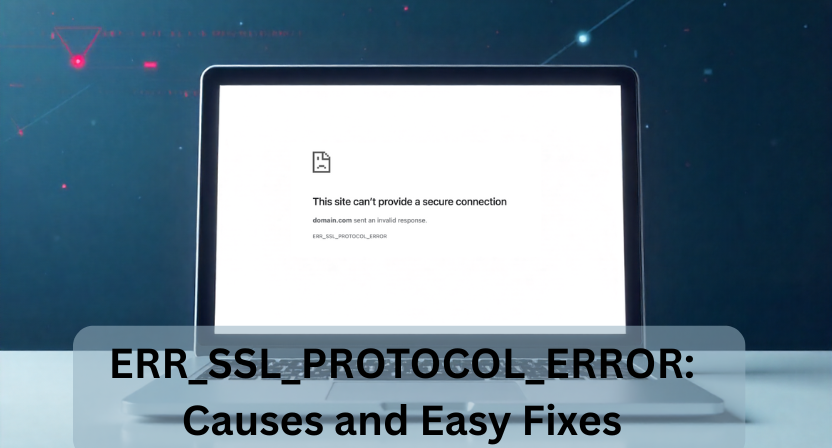
When you try to open a website and suddenly see the message ERR_SSL_PROTOCOL_ERROR, it can be frustrating, especially if you need quick access or if it’s happening on your own website. The good news? This error is extremely common and can be fixed with a few simple steps.
In this guide, we’ll break down what the error means, why it happens, and the easiest ways to fix it whether you’re a regular user or a website owner troubleshooting SSL issues.
What Is ERR_SSL_PROTOCOL_ERROR?
The error ERR_SSL_PROTOCOL_ERROR appears when your browser fails to establish a secure connection with a website. SSL/TLS protocols are responsible for encrypting the connection and verifying the website’s identity.
If anything interrupts this secure handshake, the browser blocks access and shows this error.
In simple terms:
Your browser and the website are unable to agree on a secure way to communicate.
Why Does ERR_SSL_PROTOCOL_ERROR Occur?
Here are the most common causes:
1. Incorrect Date & Time on Your Device
SSL certificates depend on accurate date and time settings.
If your system clock is wrong, the certificate looks invalid.
2. Browser Cache or Cookies Corruption
Old cached SSL files can clash with new certificate updates and trigger errors.
3. Outdated or Unsupported SSL/TLS Versions
If a website uses outdated SSL protocols (like SSL 3.0) or deprecated ciphers, browsers like Chrome immediately block them.
4. Antivirus or Firewall Blocking SSL Connections
Some security software performs SSL scanning, which can interfere with website certificates.
5. Misconfigured Website SSL Certificate (For Website Owners)
A few issues can break the SSL handshake:
- Wrong certificate installation
- Missing intermediate certificates
- Expired SSL certificate
- Using old TLS protocols
- Domain mismatch (e.g., www vs non-www)
6. Network Restrictions or VPN Issues
Public WiFi, proxies, or certain VPNs may block secure connections or redirect traffic incorrectly.
Easy Fixes for ERR_SSL_PROTOCOL_ERROR (For Users)
1. Check and Correct Your Date & Time
Make sure your system’s date, time, and region settings are accurate.
Most SSL errors disappear instantly after correcting this.
2. Clear Browser SSL Cache, Cookies & Data
A quick reset usually solves outdated SSL configurations.
Chrome:
Settings → Privacy & Security → Clear Browsing Data
Select Cached images & files and Cookies.
3. Disable QUIC Protocol (Chrome)
Sometimes QUIC conflicts with SSL handshake.
- Go to: chrome://flags/
- Search for QUIC
- Disable it
- Restart Chrome
4. Temporarily Disable SSL Scanning in Antivirus
If you use:
- Kaspersky
- Bitdefender
- Avast
- ESET
Go to settings → disable HTTPS/SSL scanning temporarily and retry the site.
5. Try Incognito Mode or Another Browser
If the website loads elsewhere, the issue is definitely browser-related.
6. Restart Your Router or Change the Network
Switch to a different internet connection or disable the proxy/VPN.
Fixes for Website Owners and Developers
If the err_ssl_protocol_error is appearing on your site, follow these steps:
1. Check SSL Installation
Use an SSL checker tool to confirm if:
- The certificate chain is valid
- Intermediate certificates are included
- No mismatch exists
2. Update TLS Settings
Most browsers require:
- TLS 1.2 (minimum)
- Preferably TLS 1.3
Disable outdated protocols like SSL 3.0 and TLS 1.0.
3. Verify Domain Configuration
Ensure both:
- www.domain.com
- domain.com
point to the same certificate.
4. Renew Expired Certificates
Even a few hours of expiry will cause Chrome to block your site.
5. Remove Mixed Content
Load everything from scripts to images via HTTPS.
Mixed HTTP and HTTPS resources cause secure connection failures.
When Should You Contact Your Hosting Provider?
If you’ve tried the above fixes and the error is still showing, your hosting provider can help with:
- Reinstalling SSL
- Updating server protocols
- Checking firewall settings
- Fixing misconfigured redirects
Most hosting companies can resolve SSL handshake issues within minutes.
Conclusion
The ERR_SSL_PROTOCOL_ERROR may look intimidating, but in most cases, it’s one of the simplest SSL issues to fix. Whether the problem is on your device or your website, following the steps above will help you troubleshoot quickly and restore a secure connection.
If you’re a website owner, keeping your SSL certificate updated and your server properly configured ensures your users never face this error.